iBO Player Pro
The premium IPTV player for Smart TVs and Android devices
iBO Player Pro vs iBO Player — What’s Actually Different?
The question everyone asks before downloading iBO Player Pro is whether it’s worth the upgrade from the standard iBO Player. The honest answer depends on what you care about most in your IPTV experience.
Both versions support M3U playlists and Xtream Codes connections, work on Samsung and LG Smart TVs, and display your full channel library with EPG data. The differences are in the details — and those details add up to a meaningfully better daily experience for regular users.
iBO Player (Standard)
- Basic M3U & Xtream Codes support
- Standard channel list view
- Basic EPG support
- Limited customization options
- Standard playlist management
- Basic search functionality
- Standard video player
iBO Player Pro
- Advanced M3U & Xtream Codes support
- Enhanced channel grid with better layout
- Full 7-day EPG with rich program info
- Extensive UI customization
- Multi-playlist management
- Advanced search with filters
- Improved video player engine
The practical difference shows up most in three areas: the EPG (program guide), the channel navigation, and the overall performance on older Smart TV hardware. iBO Player Pro handles large channel libraries — 50,000+ channels — more efficiently than the standard version, with faster loading and smoother scrolling when browsing categories.
iBO Player Pro on Your Smart TV — What It Looks Like
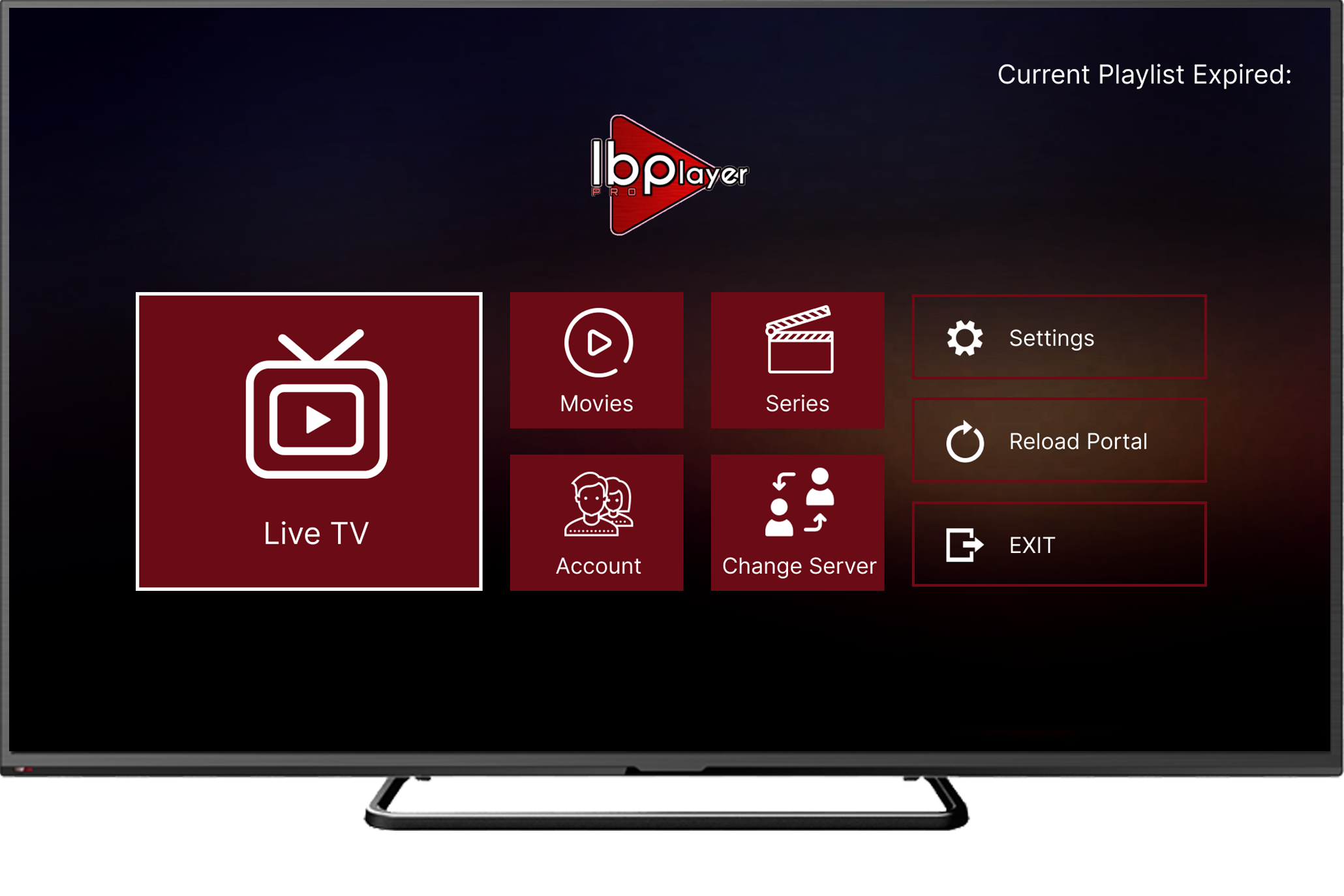
The screenshot above gives a clear picture of what iBO Player Pro actually looks like in use. The interface is designed specifically for television navigation — large text, clear category labels, and a layout that works well with a remote control rather than a touchscreen.
The channel grid organizes your library by category, with your favorites accessible immediately from the top. The EPG panel on the right (or bottom, depending on your layout preference) shows what’s currently airing and what’s coming up next. Navigation is smooth and responsive — an area where iBO Player Pro noticeably outperforms the standard version, particularly on Smart TVs that are a few years old.
iBO Player Pro Activation — Pricing and How to Activate
Like the standard version, iBO Player Pro requires a separate activation to unlock its full features. This activation is for the app itself and is completely separate from your IPTV subscription.
IPTV Subscription Pricing (Services IPTV)
In addition to the app activation, here’s what a quality IPTV subscription looks like through Services IPTV — fully compatible with iBO Player Pro:
How to Set Up iBO Player Pro — Complete Step by Step
Step 1: Install iBO Player Pro on Your Device
Installation varies by device:
- Samsung Smart TV: Open the Samsung App Store (Smart Hub), search for “iBO Player Pro,” and install directly.
- LG Smart TV: Open the LG Content Store, search for “iBO Player Pro,” and install.
- Android TV Box / Fire Stick: Install via the Google Play Store, or sideload the APK if not available in your region’s store.
- Android Phone/Tablet: Download from the Google Play Store.
Step 2: Add Your iBO Player Pro Playlist
This is the most important step — without a playlist, the app has nothing to play. Your IPTV provider gives you either an M3U URL or Xtream Codes credentials.
Open iBO Player Pro and go to Settings
Launch the app from your Smart TV. On first launch, you’ll see an option to add a playlist or connection. If you’ve already used the app before, go to Settings → Playlists → Add New.
Choose your connection method
Select either “M3U Playlist URL” or “Xtream Codes API” depending on what your IPTV provider has given you. Both work equally well with iBO Player Pro — Xtream Codes is slightly faster to load for large libraries.
Enter your credentials
For M3U: paste your playlist URL exactly as provided. For Xtream Codes: enter the server URL, your username, and your password. All credentials are case-sensitive — verify each character carefully, especially the difference between 0 (zero) and O (letter O).
Name your playlist and save
Give this connection a descriptive name — something like “Services IPTV Main” helps if you add multiple playlists later. Save the settings.
Wait for channels to load
iBO Player Pro will fetch and load your complete channel library. For 50,000+ channels, expect 2–5 minutes on first load. Subsequent loads are faster as the app caches the playlist structure.
Set up favorites and EPG
Once channels are loaded, spend 5 minutes adding your most-watched channels to favorites. Also configure the EPG source (your provider should give you an EPG URL) for the program guide to populate with schedule information.
Key Features of iBO Player Pro
Native Smart TV App
Runs directly on Samsung Tizen and LG webOS — no extra hardware required. Your existing TV remote handles all navigation.
Dual Connection Support
M3U URL and Xtream Codes both fully supported. Switch between connection methods anytime from settings.
Advanced 7-Day EPG
Rich program guide showing current and upcoming content across all channels. Plan your viewing up to a week ahead.
Smart Favorites
Quick-access favorites list with custom ordering. Pin your most-watched channels for instant one-click access.
Full VOD Library
Browse and play your IPTV provider’s movies and series library with poster artwork and metadata display.
Advanced Search
Search channels and VOD with filters by category, language, and genre. Far more powerful than the standard version’s search.
UI Customization
Adjust layout, theme, grid size, and display preferences to match your viewing setup and personal preference.
Optimized Performance
Faster channel loading and smoother navigation than the standard version, particularly noticeable on older Smart TVs.
What Channels Are Available on iBO Player Pro?
It’s important to understand that iBO Player Pro itself doesn’t provide any channels. It’s a player application — the channels come from your IPTV subscription. What iBO Player Pro does is display and play those channels in a well-organized, TV-optimized interface.
With a quality IPTV subscription like Services IPTV, your iBO Player Pro channel library will include:
- USA: ABC, NBC, CBS, FOX, ESPN, CNN, Fox News, MSNBC, HGTV, Discovery, HBO, AMC, and hundreds more
- UK: BBC One/Two/Three/Four, ITV 1-4, Channel 4/5, Sky Sports 1-6, BT Sport 1-3, Sky Atlantic
- Sports: Every major sports network — complete NFL, NBA, MLB, NHL, Premier League, Champions League, LaLiga, Bundesliga coverage
- Arabic: MBC 1-4, Al Jazeera, beIN Sports 1-3, OSN series, Rotana Cinema, and regional Arabic channels
- Europe: TF1, France 2/3/4/5, M6 (France), ARD, ZDF, RTL (Germany), RAI 1-3 (Italy), TVE (Spain), and more
- Asia: Zee TV, Star Plus, Star Sports, Sony Entertainment (India), NHK, CCTV
- Kids: Disney Channel, Cartoon Network, Nickelodeon, Nick Jr., CBeebies
- Movies & VOD: 55,000+ live channels plus 172,000+ movies and 43,000+ TV series on demand
Compatible Devices for iBO Player Pro
| Device | Platform | Installation Method | Experience |
|---|---|---|---|
| Samsung Smart TV | Tizen OS | Samsung App Store | Excellent — native |
| LG Smart TV | webOS | LG Content Store | Excellent — native |
| Android TV Box | Android TV | Play Store / APK | Very Good |
| Amazon Fire Stick | Fire OS | APK sideload | Good |
| Android Phone | Android 5.0+ | Google Play Store | Good |
| Android Tablet | Android 5.0+ | Google Play Store | Good |
Troubleshooting iBO Player Pro
Playlist Fails to Load
Check your credentials character by character — URLs and Xtream Codes details are case-sensitive and one wrong character will prevent loading. Also verify that your internet connection is active and that your IPTV subscription hasn’t expired.
Buffering on HD Channels
Switch from Wi-Fi to Ethernet if possible — a wired connection dramatically improves stream stability. Also test your internet speed (you need 10–15 Mbps per HD stream). If the buffering is on specific channels only, contact your IPTV provider as it may be a server-side issue.
EPG Not Loading
EPG data comes from your IPTV provider. Check that you’ve correctly entered the EPG URL in iBO Player Pro’s settings. If the URL is correct and EPG still doesn’t populate, contact your provider to verify EPG data is included in your subscription.
App Running Slowly on Older Smart TV
iBO Player Pro is better optimized than the standard version, but older Smart TVs (2015–2018 models) can struggle with large channel libraries. Reduce the number of visible channels by creating category filters, clear the app cache from your TV settings, and ensure no other apps are running in the background.
Getting the Most from iBO Player Pro
Here are practical tips that make a real difference to the daily experience with iBO Player Pro:
- Set up favorites immediately — with 55,000+ channels in the library, a curated favorites list is essential. Do this within the first 10 minutes of use.
- Configure EPG URL — the program guide is one of iBO Player Pro’s best features. Make sure it’s populated by entering the EPG URL from your provider.
- Use Xtream Codes over M3U where possible — Xtream Codes loads faster and provides better VOD integration in iBO Player Pro.
- Restart the app weekly — closing and reopening iBO Player Pro once a week clears temporary files and keeps performance fresh.
- Update the playlist regularly — IPTV providers add and update channels. Refreshing your playlist in iBO Player Pro ensures you have the latest channel list.
- Enable subtitles for VOD — iBO Player Pro supports subtitle files for VOD content. Your provider may offer subtitle support for many international titles.
Ready to Use iBO Player Pro with a Quality IPTV Service?
Services IPTV provides 55,000+ channels, 172,000+ movies, and 43,000+ series — fully compatible with iBO Player Pro’s M3U and Xtream Codes formats. Free trial available, no commitment required.