What Is iBO Player and Why Do People Use It?
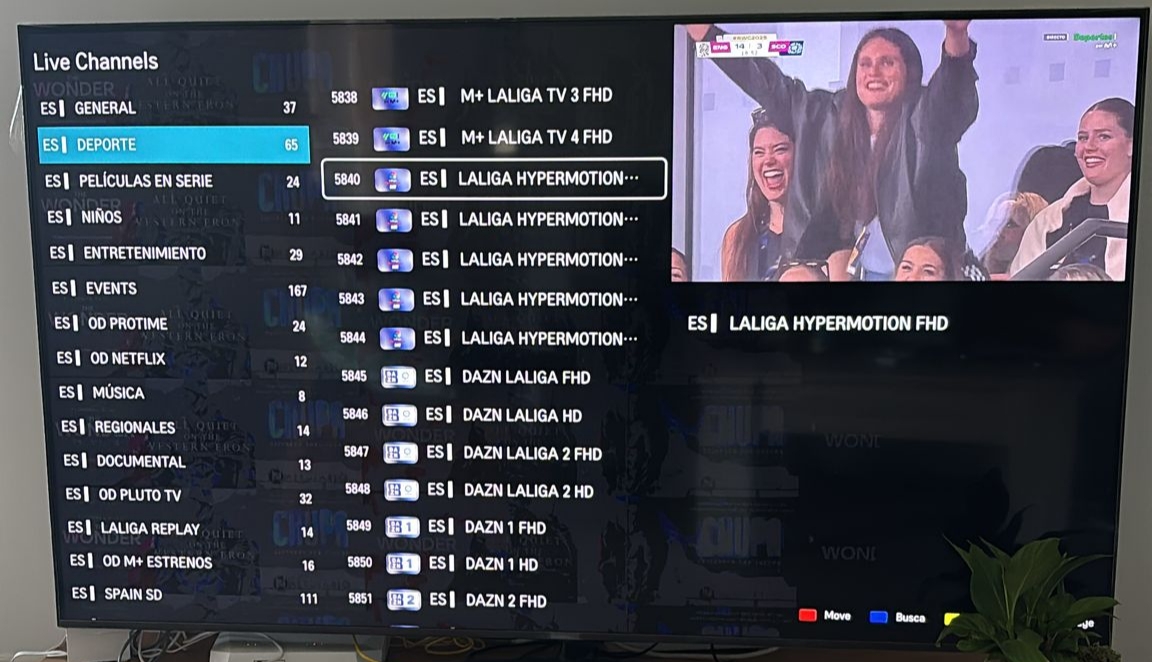
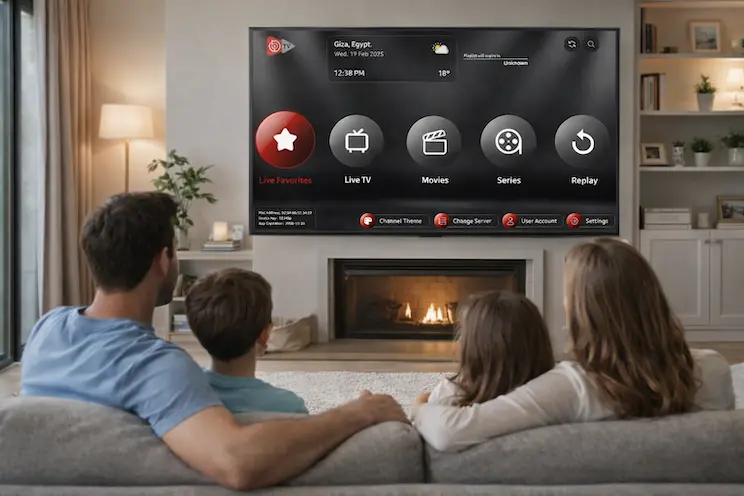
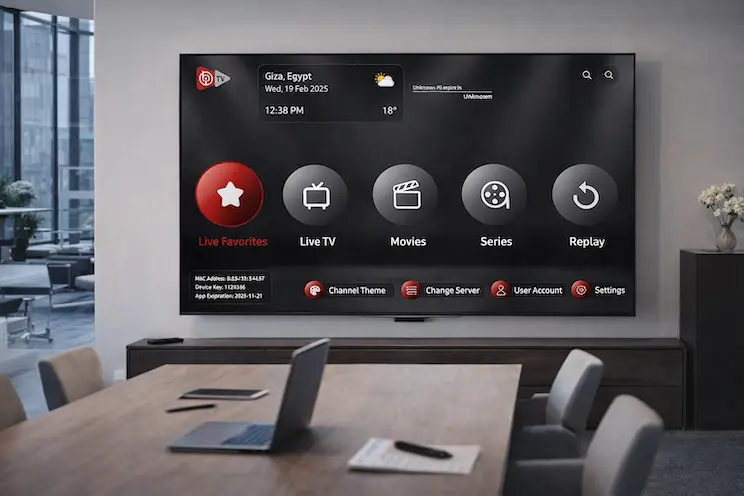
If you own a Samsung or LG Smart TV and want to watch IPTV content without buying an extra device like a Fire Stick or Android box, iBO Player is probably the most practical solution available. It’s a dedicated IPTV player app that installs directly onto your Smart TV’s operating system — Samsung’s Tizen OS and LG’s webOS — giving you a full IPTV experience without any additional hardware.
The appeal of iBO Player is straightforward: most people already own a Smart TV, and the idea of needing to buy a separate streaming stick just to watch IPTV feels unnecessarily complicated. iBO Player eliminates that complexity. You install it directly on your TV, enter your iBO Player playlist credentials, and your channels appear in a clean, TV-friendly interface you can navigate with your existing remote.
That said, iBO Player isn’t just for Smart TV users. It’s also available on Android phones and tablets, making it a versatile option for subscribers who want to use the same app across different devices with a single IPTV subscription.
Beyond the hardware convenience, iBO Player has earned its reputation through consistent reliability and a well-designed interface. The app organizes your iBO Player channels into logical categories, displays an Electronic Program Guide (EPG) so you can see what’s airing on each channel, and handles both M3U playlist URLs and Xtream Codes connections — the two most common formats used by IPTV subscription providers.
Understanding iBO Player Activation — Costs and Options
One thing that confuses many new iBO Player users is the distinction between the iBO Player activation and an IPTV subscription. These are two completely separate costs that serve completely different purposes:
- iBO Player activation — This is what you pay to use the iBO Player app itself. It’s a one-time or annual fee to the iBO Player developers. It does not include any channels or content.
- IPTV subscription — This is what you pay to your IPTV provider (like Services IPTV) for access to channels, movies, and series. This is completely separate from the app activation.
Think of it this way: iBO Player is the television set, and your IPTV subscription is the cable or satellite signal coming into it. You need both, but they come from different sources and have different costs.
iBO Player Activation Pricing
IPTV Subscription Pricing (Separate from App Activation)
In addition to the iBO Player app activation, you’ll need an IPTV subscription to actually watch content. Here’s what a quality subscription looks like through Services IPTV:
How to Add Your iBO Player Playlist — Step by Step
Adding your iBO Player playlist is the most important setup step. Without a playlist or Xtream Codes connection, the app has no channels to display. The process is slightly different depending on which connection method your IPTV provider uses, but both are straightforward.
Method 1: Adding a Playlist via M3U URL
M3U is the most common playlist format. Your IPTV provider gives you a web address (URL) that points to your personalized channel list. iBO Player fetches this list and displays it as your channel guide.
Open iBO Player on your device
Launch the app from your Smart TV home screen or app list. If it’s your first time opening it, you’ll see a setup screen asking you to add a playlist or connect via Xtream Codes.
Select “Add Playlist” or “M3U URL”
Navigate to the option for adding a playlist via URL. The exact menu name varies slightly between iBO Player versions, but it’s typically labeled “Add Playlist,” “M3U Playlist,” or “URL Playlist.”
Enter your M3U URL
Using your remote or an on-screen keyboard, enter the M3U URL provided by your IPTV provider. Double-check for typos — a single incorrect character will prevent the playlist from loading. If possible, have the URL sent to your phone so you can reference it character by character.
Give your playlist a name and confirm
iBO Player will ask you to name this playlist — give it something descriptive like “Services IPTV” or “Main Subscription.” Confirm the entry and the app will begin loading your channel list.
Wait for channels to load
Loading time depends on your internet speed and the size of your channel library. A full library of 50,000+ channels may take 2–4 minutes to load completely. Don’t exit the app during this process.
Method 2: Adding a Playlist via Xtream Codes
Xtream Codes is the other common connection method. Instead of a single URL, your provider gives you three pieces of information: a server URL (or portal address), a username, and a password. This method has some advantages — it often loads faster than M3U and provides better integration with the EPG.
Select “Xtream Codes” or “Portal” in iBO Player
From the main setup screen or settings menu, choose the Xtream Codes connection option.
Enter your server URL
Type in the server URL provided by your IPTV provider. This is usually in the format http://server.domain.com:port — include the port number if provided.
Enter your username and password
Type the username and password exactly as provided. These are case-sensitive — uppercase and lowercase letters matter.
Connect and wait for your channels
Confirm the connection and allow iBO Player to load your channel list, categories, and VOD library. This typically loads faster than M3U for large channel libraries.
Understanding iBO Player Channels — Organization and Navigation
Once your iBO Player playlist loads successfully, you’ll have access to all your iBO Player channels organized by category. Understanding how iBO Player organizes and displays content helps you navigate efficiently across a large library.
Channel Categories
iBO Player automatically categorizes your channels based on how your IPTV provider has organized the playlist. With a quality subscription like Services IPTV, you’ll typically find:
- USA channels — ABC, NBC, CBS, FOX, ESPN, CNN, Fox News, HGTV, and more
- UK channels — BBC, ITV, Channel 4, Sky Sports, BT Sport, and the full UK lineup
- Sports — Dedicated sports category with all major sports networks
- News — International and regional news channels
- Movies — Movie channels and VOD content
- Arabic — MBC, Al Jazeera, beIN Sports, and Arabic entertainment
- Europe — French, German, Spanish, Italian, and other European channels
- Kids — Children’s channels from multiple countries
Favorites
With potentially 50,000+ channels in your library, the favorites feature is essential. iBO Player allows you to mark any channel as a favorite, creating a personalized shortlist that you can access instantly without browsing through categories. Set this up during your first session — it transforms the daily viewing experience.
Search Function
When you know exactly which channel you want, the search function is faster than browsing categories. Type the channel name and iBO Player will filter results in real time. This works for both live channels and VOD titles.
Electronic Program Guide (EPG)
iBO Player’s EPG displays what’s currently airing on each channel and what’s coming up next. For channels with full EPG data, you can see a 7-day schedule — allowing you to plan your viewing and quickly find specific programs without knowing which channel they’re on.
iBO Player Activation — Step by Step Process
The iBO Player activation process is separate from adding your playlist and must be completed for the app to function beyond its trial period. Here’s exactly how it works:
Find your iBO Player device code
Open iBO Player. On the main screen or in the Settings/About section, you’ll find a unique device activation code — typically an 8–12 digit alphanumeric string. This code is tied to your specific device and is what the activation system uses to link your license to your hardware.
Visit the iBO Player activation website
On a phone or computer (not the TV), go to the official iBO Player activation portal. The URL is typically displayed in the app alongside your device code, or available at the iBO Player official website.
Enter your device code and choose your plan
Enter the device code from your TV into the activation portal on your phone or computer. Select your activation plan — 1 Year for €6 or Lifetime for €14.
Complete payment
Complete the payment through the available payment methods (typically credit card or PayPal). Keep your payment confirmation for reference.
Restart iBO Player to activate
After successful payment, close and reopen iBO Player on your TV. The app will verify your activation and unlock all features. If it doesn’t activate automatically, look for a “Check Activation” or “Refresh” option in the settings.
iBO Player Features — What Makes It Stand Out
Native Smart TV App
Works directly on Samsung (Tizen) and LG (webOS) TVs — no Fire Stick or Android box needed. Use your existing TV remote.
M3U & Xtream Codes
Supports both major IPTV connection formats. Compatible with virtually every IPTV subscription provider on the market.
Full EPG Support
7-day Electronic Program Guide with real-time updates. See what’s on now and what’s coming up across all channels.
Favorites Management
Mark any channel as a favorite for instant access. Essential when your library contains 50,000+ channels.
VOD Support
Browse and play movies and series from your IPTV provider’s on-demand library directly within iBO Player.
Search Function
Find channels and VOD content instantly by name. Far faster than browsing categories when you know what you want.
Multiple Playlists
Add and switch between multiple playlists — useful for households with different subscription preferences.
Multi-Platform
Use the same app on Android phones and tablets in addition to Smart TVs, with the same playlist and credentials.
Compatible Devices for iBO Player
| Device Type | Supported OS | Notes |
|---|---|---|
| Samsung Smart TV | Tizen OS | Best native experience — direct remote control navigation |
| LG Smart TV | webOS | Full feature support, clean interface on large screens |
| Android TV Box | Android TV / Google TV | Install via APK if not in app store |
| Android Phone | Android 5.0+ | Good for mobile viewing, same credentials as TV |
| Android Tablet | Android 5.0+ | Larger screen experience on Android tablets |
Troubleshooting Common iBO Player Issues
Channels Not Loading After Adding Playlist
The most common cause is a typo in the M3U URL or Xtream Codes credentials. Verify each character carefully — URLs and credentials are case-sensitive. If the URL is correct and channels still don’t load, check your internet connection and try restarting the app.
Buffering During Playback
Buffering can come from two sources: your internet connection or your IPTV provider’s servers. To distinguish between them:
- Test your internet speed — you need 10–15 Mbps per HD stream
- Try a different channel — if buffering is on one channel only, it’s likely a server-side issue
- Test at different times — peak-hour buffering that doesn’t appear off-peak points to provider infrastructure issues
- Switch to Ethernet if on Wi-Fi — wired connections significantly improve stability
EPG Not Showing Program Information
EPG data comes from your IPTV provider, not from iBO Player itself. If program guide information is missing or incorrect, contact your provider to verify that EPG data is included in your subscription and that the EPG URL is configured correctly in the app settings.
App Showing “Not Activated” After Payment
If iBO Player still shows as unactivated after you’ve completed payment, try these steps:
- Close and reopen the app completely
- Check that you entered the correct device code when activating
- Wait 5–10 minutes and try again — activation can occasionally take a few minutes to propagate
- Contact iBO Player support with your payment confirmation if the issue persists
Getting the Best IPTV Experience with iBO Player
iBO Player is just the player — the quality of your viewing experience depends equally on the IPTV subscription you pair it with. A great app with a poor subscription still buffers. Here’s what to look for in an IPTV subscription to pair with iBO Player:
- 50,000+ channels — comprehensive library covering US, UK, sports, news, and international content
- HD and 4K streams — not all providers offer true HD; verify stream quality before committing
- Stable servers — especially important for live sports where buffering is particularly frustrating
- Full EPG data — to get the best from iBO Player’s program guide feature
- M3U or Xtream Codes format — both work with iBO Player; most quality providers offer both
- Free trial — test the subscription with iBO Player before paying for a longer plan
Services IPTV provides all of the above — 55,000+ channels, full HD/4K quality, comprehensive EPG data, and both M3U and Xtream Codes connection options, all fully compatible with iBO Player. Contact us via WhatsApp to request your free trial and we’ll have you set up and watching within minutes.
iBO Player vs. Other IPTV Player Apps
| Feature | iBO Player | TiviMate | IPTV Smarters Pro |
|---|---|---|---|
| Samsung Smart TV | ✔ Native app | ✘ Not available | ✘ Not available |
| LG Smart TV | ✔ Native app | ✘ Not available | ✘ Not available |
| Android TV / Fire Stick | ✔ Available | ✔ Best in class | ✔ Available |
| iPhone / iPad | ✘ Not available | ✘ Not available | ✔ Available |
| M3U Playlist support | ✔ | ✔ | ✔ |
| Xtream Codes support | ✔ | ✔ | ✔ |
| EPG support | ✔ Full 7-day | ✔ Excellent | ✔ Good |
| VOD support | ✔ | ✔ | ✔ |
| App cost | €6/yr or €14 lifetime | Free / $5.99/yr | Free |
The key takeaway from this comparison is that iBO Player’s primary advantage is its native Smart TV support. If you own a Samsung or LG TV and don’t want to buy additional hardware, iBO Player is essentially your only practical option for a full-featured IPTV player experience. For Fire Stick and Android TV box users, TiviMate is generally considered the superior choice.
Ready to Use iBO Player with a Quality IPTV Subscription?
Get 55,000+ live channels, 172,000+ movies, and 44,000+ series — fully compatible with iBO Player’s M3U and Xtream Codes formats. Free trial available, no commitment required.