TiviMate Player Pro
The most powerful IPTV player for Fire Stick and Android TV
Why TiviMate Is the Most Popular IPTV Player in 2026
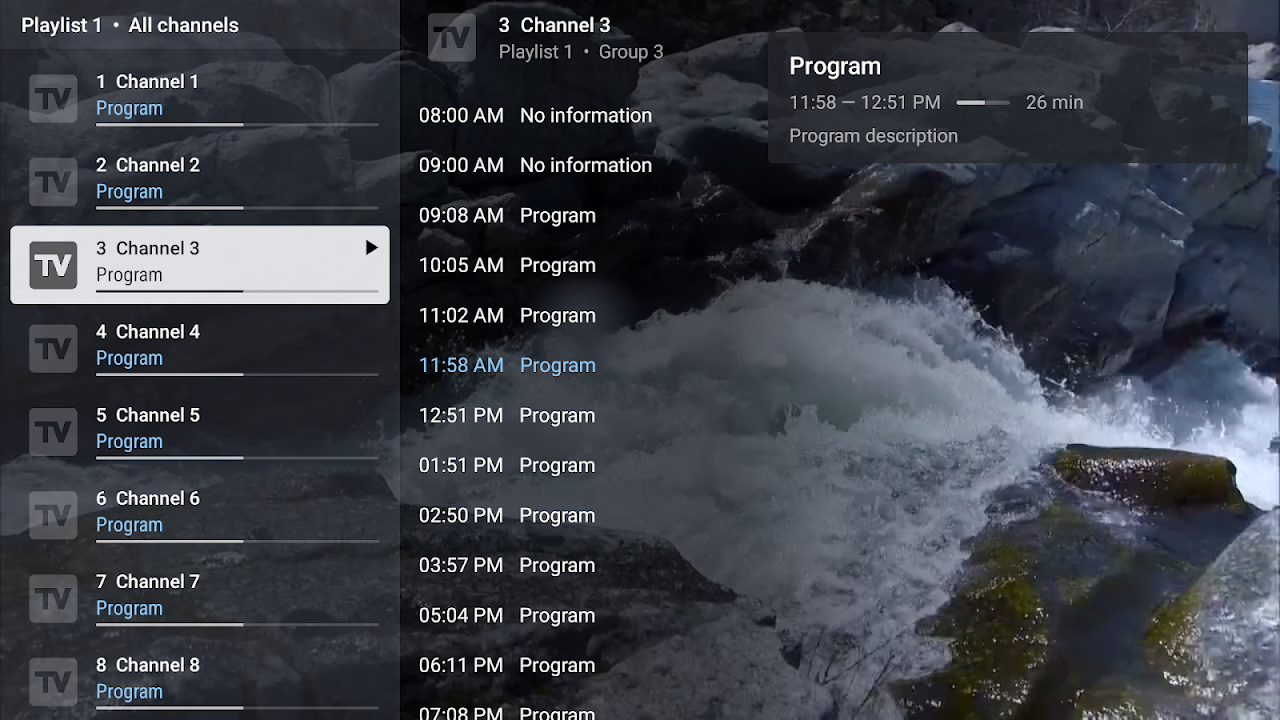
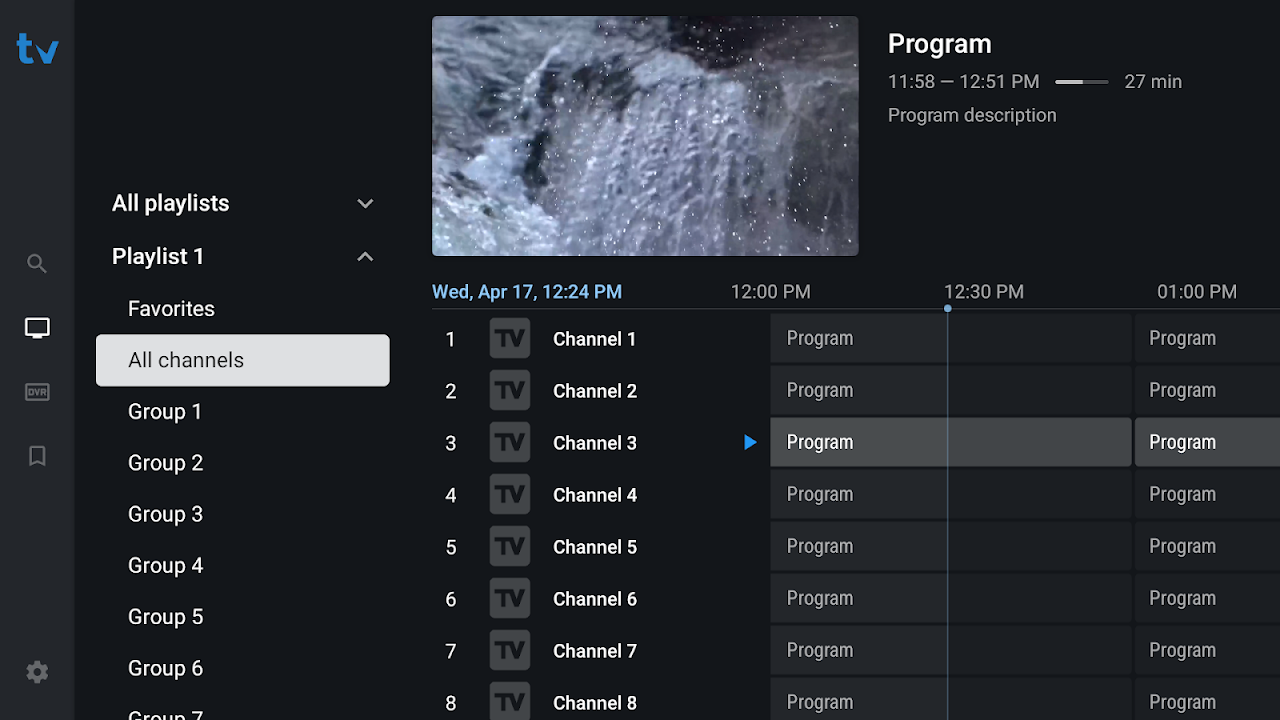
TiviMate’s dominance in the IPTV player space didn’t happen overnight. It built its reputation over several years by consistently doing things other apps couldn’t: loading large channel libraries quickly, displaying EPG data cleanly, and maintaining stable playback during extended viewing sessions — all within an interface that actually feels like it was designed for a television rather than ported from a smartphone.
For Fire Stick users specifically, TiviMate is in a category of its own. Most IPTV apps designed for Android tablets feel clunky on a 10-foot TV screen, navigated with a remote. TiviMate was built with that exact scenario in mind from the beginning. The text is legible from across a room, the channel grid is navigable with directional buttons, and there’s no need to type URLs or passwords on-screen more than once.
The Pro version takes all of these qualities and adds the features that turn a good IPTV experience into a great one: multiple simultaneous playlists, catch-up TV for supported providers, automatic playlist refresh, recording capability, and parental controls for family households.
TiviMate Free vs TiviMate Player Pro — What You Actually Get
TiviMate Free
- 1 playlist only
- Basic channel list view
- Standard EPG (2 days)
- No catch-up TV
- No recording feature
- No parental controls
- Manual playlist refresh only
- Limited panel customization
TiviMate Player Pro
- Unlimited playlists
- Advanced channel grid layouts
- Full 7-day EPG
- Catch-up TV support
- Recording to external storage
- Full parental controls
- Automatic playlist updates
- Complete UI customization
For most regular IPTV users, the Pro upgrade is worth it within the first week. The multiple playlist support alone is valuable if you have more than one IPTV subscription, and the automatic playlist refresh ensures your channel list stays current without manual intervention.
How to Install TiviMate on Amazon Fire Stick
TiviMate is not available directly in the Amazon App Store, which means installation requires a few extra steps. Don’t be put off by this — the process takes about 5 minutes and is straightforward once you know the steps.
Enable Unknown Sources on your Fire Stick
Go to Settings → My Fire TV → Developer Options → Apps from Unknown Sources, and turn this ON. This allows Fire Stick to install apps from sources other than the Amazon App Store.
Install the Downloader app
Search for “Downloader” in the Amazon App Store and install it. This is a free utility app that lets you install APK files on your Fire Stick from a URL.
Download TiviMate via Downloader
Open Downloader and enter the TiviMate APK download URL in the URL field. The official TiviMate APK is available from the TiviMate website or reliable APK repositories. The file will download and prompt you to install.
Install TiviMate
Follow the on-screen prompts to complete installation. Once installed, you can delete the APK file to free up storage space on your Fire Stick.
Launch TiviMate and add your playlist
Open TiviMate from your Fire Stick app library. On first launch, you’ll be guided through the playlist setup process. Have your IPTV credentials ready — either your M3U URL or Xtream Codes details.
How to Install TiviMate Player Pro on Android TV
On Android TV and Google TV devices, the process is much simpler:
- Open the Google Play Store on your Android TV device
- Search for “TiviMate IPTV Player”
- Install the app (it’s free to install, with Pro upgrade available within the app)
- Open TiviMate and proceed to add your playlist
- Upgrade to TiviMate Player Pro from within the app settings
Adding Your IPTV Playlist to TiviMate — Complete Guide
Once TiviMate is installed, adding your IPTV playlist is the most important next step. TiviMate supports two connection methods — M3U URL and Xtream Codes — and handles both equally well.
Adding via M3U URL
Open TiviMate and go to Settings → Playlists
From the TiviMate home screen, navigate to Settings (gear icon), then select Playlists.
Tap the + button to add a new playlist
Select “Add Playlist” and choose “M3U Playlist URL” as your connection method.
Enter your M3U URL
Type or paste the M3U URL provided by Services IPTV. The URL contains your personal authentication details — keep it private. TiviMate will begin loading your channel list immediately after you confirm.
Name your playlist and set refresh interval
Give the playlist a recognizable name. With TiviMate Pro, set an automatic refresh interval (daily or weekly) so your channel list stays current without manual updates.
Adding via Xtream Codes
Go to Settings → Playlists → Add Playlist
Choose “Xtream Codes API” as your connection method instead of M3U URL.
Enter your Xtream Codes credentials
Input the server URL, your username, and your password exactly as provided by your IPTV provider. These are case-sensitive. The server URL typically includes a port number (e.g., http://server.domain.com:8080).
Confirm and let TiviMate load
TiviMate will connect to the server and load your complete channel list, categories, and VOD library. Xtream Codes typically loads faster than M3U for large libraries.

Configuring TiviMate Player Pro for the Best Experience
Installing TiviMate and adding a playlist gets you 80% of the way there. The remaining 20% comes from configuring the app properly for your setup:
Set Up EPG (Electronic Program Guide)
The EPG turns TiviMate from a simple channel list into a proper TV experience. To set it up:
- Go to Settings → Playlists → select your playlist → EPG
- Enter the EPG URL provided by Services IPTV
- Set the EPG update frequency (every 12 or 24 hours is typical)
- Wait for EPG data to load — this may take a few minutes for large libraries
Create Your Favorites List
With 55,000+ channels available, navigating the full list is impractical for daily use. During your first viewing session, add your top 20–30 channels to favorites. In TiviMate Pro, you can organize favorites into custom groups — separate lists for news, sports, kids, and entertainment.
Configure Video Player Settings
TiviMate uses its own video player by default, but also supports ExoPlayer and the system player as alternatives. If you experience playback issues with certain channels or codecs, try switching the player in Settings → Player → Video Player. ExoPlayer generally handles H.265 4K streams better on older Fire Stick models.
Set Up Parental Controls (Pro Feature)
If children use the same TV, TiviMate Pro’s parental controls let you lock specific channels or categories with a PIN. Access this in Settings → Parental Controls.
TiviMate Pro Key Features
TV-Optimized Interface
Designed from the ground up for television navigation. Large text, clear layout, smooth remote control response.
Unlimited Playlists
Add multiple IPTV subscriptions and switch between them instantly. Essential for households with different provider preferences.
7-Day EPG
Full week program guide with rich show information. Plan viewing days in advance and never miss a scheduled program.
Catch-Up TV
Watch content that aired in the past 24–72 hours (where supported by your IPTV provider) without needing a recording.
Recording
Record live channels to a USB drive or external storage connected to your Fire Stick or Android TV box.
Auto Playlist Refresh
Automatically updates your channel list on a schedule so you always have the latest channels without manual intervention.
Parental Controls
PIN-protect specific channels or entire categories to manage what content younger viewers can access.
Full UI Customization
Adjust panel layout, font size, color scheme, and grid density to match your preference and room viewing distance.
Compatible Devices for TiviMate Player Pro
| Device | Installation Method | Experience Quality |
|---|---|---|
| Amazon Fire Stick 4K Max | Downloader APK sideload | ⭐ Excellent — recommended |
| Amazon Fire Stick 4K | Downloader APK sideload | ⭐ Excellent |
| NVIDIA Shield TV Pro | Google Play Store | ⭐ Best possible |
| Xiaomi Mi Box / Mi Stick | Google Play Store | ✔ Very Good |
| Android TV Box (generic) | Play Store / APK | ✔ Good to Excellent |
| Google TV (Chromecast) | Google Play Store | ✔ Very Good |
| Samsung Smart TV | Not available | Use iBO Player Pro instead |
| LG Smart TV | Not available | Use iBO Player Pro instead |
IPTV Subscription — What You Get with Services IPTV and TiviMate Pro
TiviMate Player Pro is the player — the content comes from your IPTV subscription. Here’s what Services IPTV provides, fully compatible with TiviMate’s M3U and Xtream Codes connection methods:
- 55,000+ live channels — US, UK, Arabic, European, Asian, and Latin American content
- 172,000+ movies on demand — updated regularly with new releases
- 43,000+ TV series — complete season runs across all genres
- HD and 4K streams — high bitrate quality for the best picture on large screens
- Full EPG data — compatible with TiviMate’s program guide feature
- M3U URL and Xtream Codes — both supported, your choice of connection method
- Free trial available — test with TiviMate before committing to a subscription
Troubleshooting TiviMate Player Pro
Channels Not Loading After Adding Playlist
Verify your M3U URL or Xtream Codes credentials are entered exactly as provided — these are case-sensitive. Check that your internet connection is active. If using Xtream Codes, confirm that the server URL includes the correct port number. Contact your IPTV provider if credentials are verified and channels still don’t load.
TiviMate Buffering During Playback
Switch from Wi-Fi to Ethernet if your Fire Stick or Android TV box supports it (many do with an Ethernet adapter). Check your internet speed — HD streams need 10–15 Mbps per stream. Try switching the video player in Settings → Player → Video Player between TiviMate’s native player and ExoPlayer. Clear the TiviMate cache from your device’s app settings if buffering persists.
EPG Not Displaying Program Information
EPG data comes from your IPTV provider. Verify the EPG URL is correctly entered in TiviMate’s playlist settings. Force-refresh the EPG from Settings → EPG → Update Now. If EPG data is missing for specific channels, those channels may not have EPG data available from your provider.
TiviMate Pro Features Not Unlocking
After purchasing TiviMate Player Pro, the upgrade may take a few minutes to activate. Restart TiviMate and check Settings → About to confirm Pro status. If the upgrade isn’t reflecting after 10 minutes, try signing out and back into your Google Play account (on Android TV) or reinstalling TiviMate.
Ready to Use TiviMate Player Pro with a Quality IPTV Service?
Services IPTV gives you 55,000+ channels, 172,000+ movies, and 43,000+ series — with full EPG data, M3U and Xtream Codes support. Perfect for TiviMate Pro. Free trial available.